How to Use Unlimited Residential Proxies via APl Extraction?
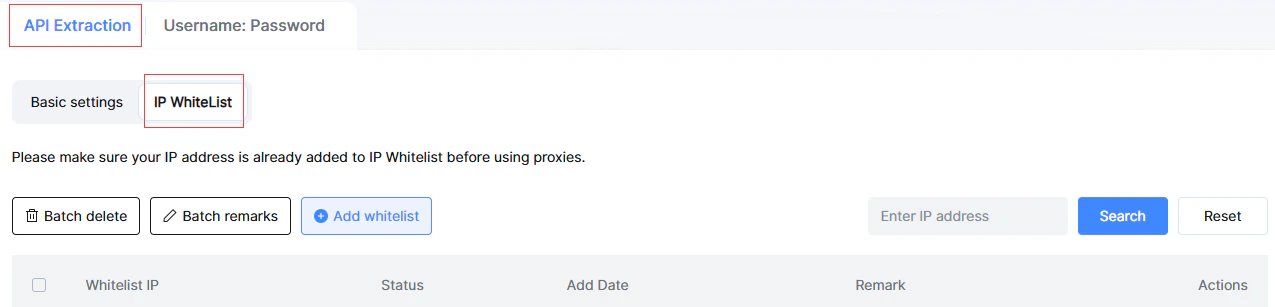
B2Proxy supports the extraction of unlimited residential proxies via the API method (authenticated by IP whitelisting), eliminating the need for usernames and passwords and offering a more secure and stable configuration. This article explains how to add whitelisted IPs and successfully extract unlimited residential proxies through the API, helping you quickly complete the setup and start using the service.
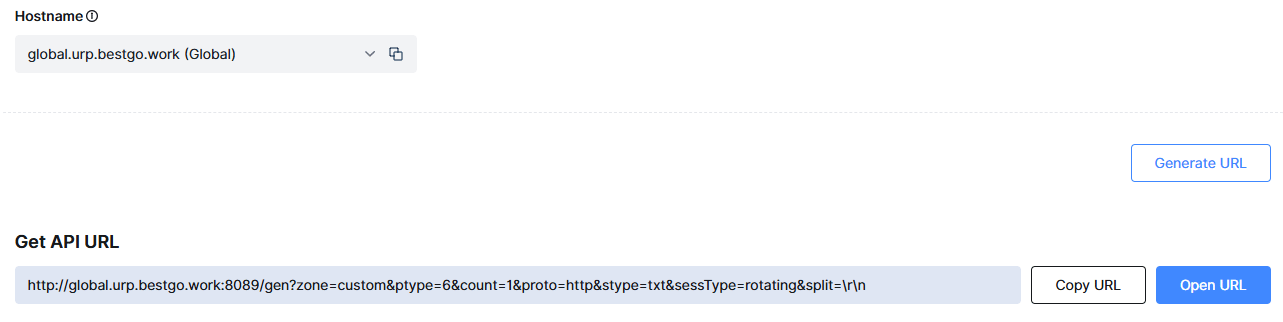
Rotating IP: Auto-rotates IP per request (ideal for scraping/data collection).Sticky IP: The IP remains fixed for a period of time (5 minutes by default), suits account management).
When selecting a sticky IP, choose “Yes” in the [Change IP in Advance] option to allow the system to automatically switch the IP earlier based on its actual available time.
If you choose “No,” the IP will remain unchanged during the sticky session and can only be switched after the session ends.
Open the API link in your browser or configure it in your tool. A correct response example would be:1.1.1.1:88882.2.2.2:8888…If the following message appears, it means the whitelist was not added correctly. Please go back to step one and check.
IP Whitelist Check Failed
Rate Limit: 1 request/second.
Proxy Validity: 24 hours (default). Regenerate after expiry.